Category: Productivity

  • How to Use Semrush for Free: What the Free Account Actually Does

    How to Use Semrush for Free: What the Free Account Actually Does

    Semrush is expensive enough that most people assume there is no point trying it without paying. That assumption costs you a genuinely useful free tool. A free Semrush account needs no credit card and does not expire; it just rations you. Here is exactly what you get, and a workflow that makes the ration go a long way.

    Disclosure: some links below are affiliate links. If you purchase through them we may earn a commission at no extra cost to you. This doesn’t affect our rankings.

    Quick answer: A free Semrush account gives you roughly 10 analytics requests per day, a site audit of up to 100 pages, and position tracking for 10 keywords, with no card and no expiry. That is enough to audit a small site, check your key keywords and watch one competitor. Paid plans also offer a free trial when you outgrow it.

    What the Free Account Includes

    Per Semrush’s plan documentation and third-party breakdowns at the time of writing: around ten requests per day across the main analytics reports (domain overview, keyword overview and similar), a site audit capped at roughly 100 pages, position tracking for up to ten keywords, and a small number of projects. Semrush adjusts these limits periodically, so treat the numbers as a guide and check the plan comparison page for the current figures.

    A Workflow That Fits in Ten Requests a Day

    Day one, audit yourself. Create a project for your own site and run the site audit. For small sites, 100 pages covers everything, and the audit alone often surfaces broken links, missing meta descriptions and slow pages worth fixing.

    Day two, set up tracking. Add your ten most important keywords to position tracking. Choose keywords with real intent, not vanity terms. This runs in the background without spending your daily requests.

    Every day after, spend requests deliberately. One domain overview of a competitor, a handful of keyword overviews for topics you are considering, and stop. Ten requests used with a plan beat a hundred used browsing.

    Where the Free Account Runs Out

    You will feel the limits the moment you want to research many keywords in one sitting, export data, track more than ten positions, or audit a larger site. That is the point to consider a paid plan, and Semrush offers a free trial of its paid tiers, which is the sensible way to test whether the full toolkit earns its price for your situation. Our SEO tools comparison covers Semrush against Ahrefs and the budget alternatives if you are deciding.

    Pair It With the Free Essential

    Whatever you do in Semrush, connect Google Search Console to your site. It is free, unlimited, and shows the queries you already rank for, which makes every Semrush request smarter. The two together are a surprisingly capable free SEO setup for a small site.

    FAQ

    Is Semrush free?

    There is a free account with daily limits, roughly ten analytics requests per day plus a small site audit and keyword tracking. It does not expire and needs no card. Full access requires a paid plan, which you can trial first.

    How many keywords can I track on the free plan?

    Around ten keywords in position tracking, according to current documentation. Limits change periodically, so check Semrush’s plan comparison for the latest.

    Is the free Semrush account enough for a small business?

    For auditing a small site and watching a handful of keywords, often yes, especially paired with Google Search Console. Businesses doing regular content planning or competitor research usually outgrow it quickly.
  • Cal.com Workflows: Automatic Reminders That Cut No-Shows

    Cal.com Workflows: Automatic Reminders That Cut No-Shows

    Every no-show is a slot you could have given to someone else. Cal.com workflows send reminders and follow-ups automatically, and the template gallery means you do not start from a blank page. Here is how to set up the two reminders that matter most. If you have not set up your account yet, begin with our setup guide.

    Disclosure: some links below are affiliate links. If you purchase through them we may earn a commission at no extra cost to you. This doesn’t affect our rankings.

    Quick answer: Open Workflows, start from a template (one-day-before reminder and no-show follow-up are the two to start with), attach it to your event types, adjust timing and wording, then test with a real booking. Check your plan for SMS and phone features.

    The Template Gallery

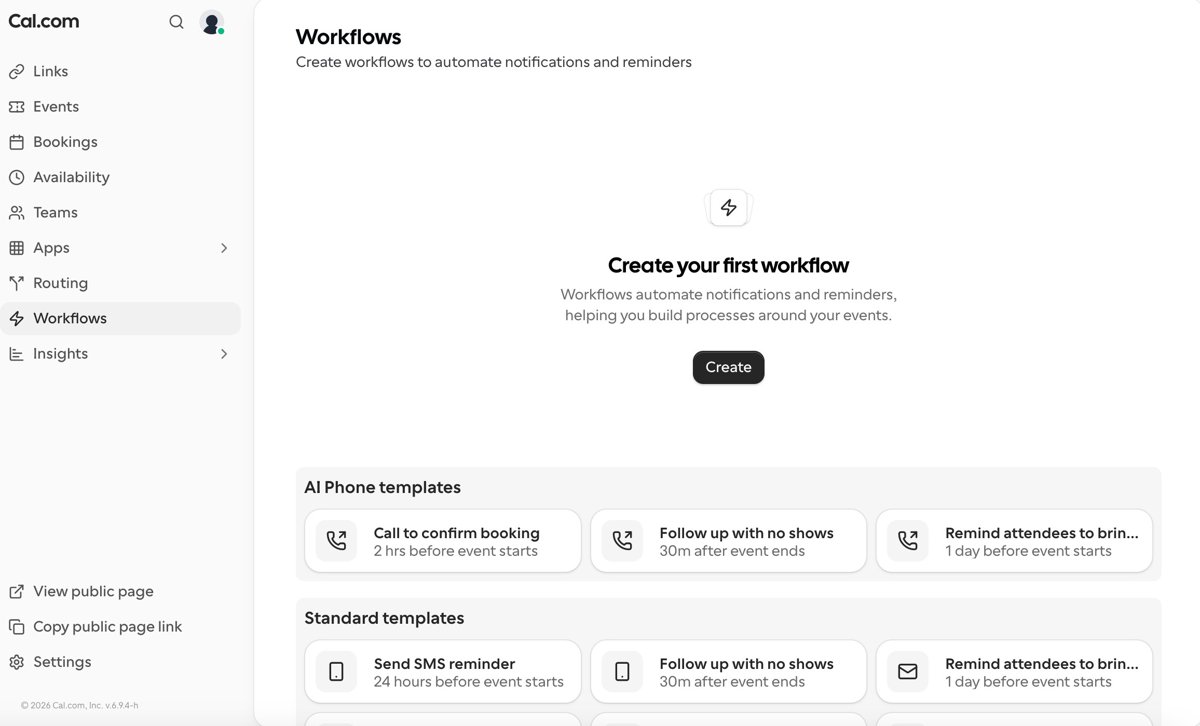
    Cal.com workflow templates for reminders and no-show follow-ups
    The Workflows template gallery. Screenshot: our own account

    Cal.com opens Workflows with ready-made templates grouped by channel: reminders sent a day before the event, follow-ups sent after a no-show, and confirmation calls shortly before a booking. Starting from a template means a working reminder in minutes rather than designing one.

    Step 1: Open Workflows

    In Cal.com, open the Workflows section from the left menu. It starts with a template gallery rather than a blank page.

    Step 2: Pick a reminder template

    Choose a template such as reminding attendees one day before the event, or following up with no-shows after the event ends.

    Step 3: Attach it to your event types

    Select which event types the workflow applies to, for example only your paid consultations.

    Step 4: Adjust the timing and message

    Set when the reminder sends and edit the message so it sounds like you, including the meeting link or preparation notes.

    Step 5: Activate and test

    Save the workflow, then make a test booking to confirm the reminder arrives as expected.

    The Two Reminders Worth Setting Up First

    A day-before email reminder catches the forgotten meeting while there is still time to reschedule. A no-show follow-up turns a missed meeting into a rebooked one instead of a lost lead. Add more only once these two are working; over-messaging people you are about to meet reads as nervous rather than professional.

    If SMS or phone reminders matter to your business, that is where plan tiers become relevant, see the full review, and note that our link gives new users 20 percent off paid plans for a year.

    FAQ

    Do booking reminders actually reduce no-shows?

    Reminders are one of the most widely recommended no-show reductions for appointment-based work, because most missed meetings are forgotten rather than skipped. A reminder a day before plus one shortly before is a common pattern.

    Are Cal.com workflows free?

    Some workflow capabilities may depend on your plan, particularly SMS and AI phone features. Check Cal.com’s current pricing page for what your plan includes before building around a specific channel.

    What should a reminder message include?

    The meeting time with timezone, the video link or address, a one-line reason to show up prepared, and an easy reschedule option. Making rescheduling easy converts would-be no-shows into moved meetings.

  • How to Embed Cal.com on Your Website (All 4 Embed Styles Explained)

    How to Embed Cal.com on Your Website (All 4 Embed Styles Explained)

    A booking link in your email signature is good; a booking calendar right on your website is better, because visitors book in the moment instead of promising to reach out later. Cal.com generates the embed code for you in four different styles. Here is which style fits which site, and the five-minute path from event type to live calendar. New to Cal.com? Start with our setup guide.

    Disclosure: some links below are affiliate links. If you purchase through them we may earn a commission at no extra cost to you. This doesn’t affect our rankings.

    Quick answer: Open your event type, click the embed icon, pick a style, copy the generated snippet, and paste it into your site (a Custom HTML block in WordPress). Inline suits a dedicated booking page; the floating button suits sitewide availability.

    The Four Embed Styles

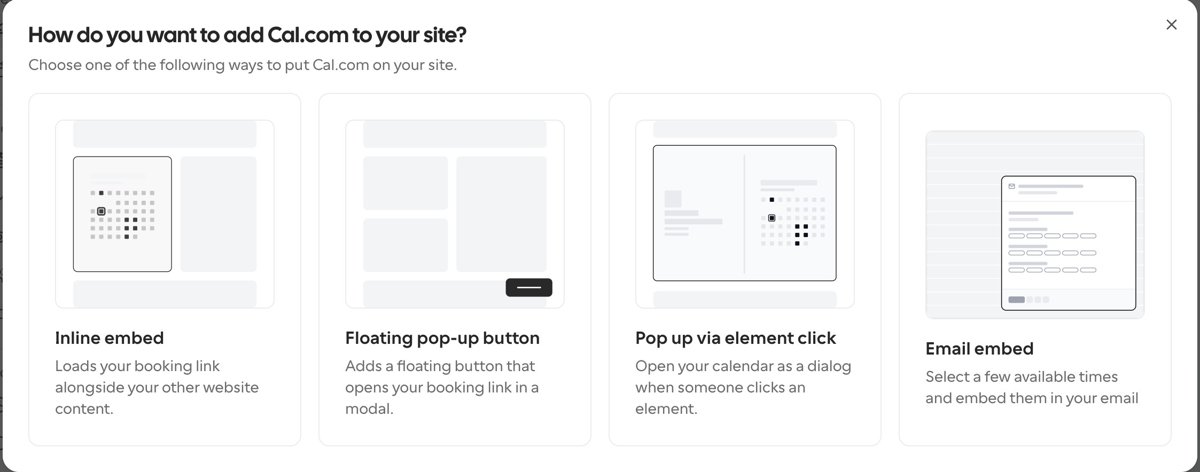
    Cal.com embed options: inline, floating button, pop-up and email
    Cal.com’s four embed styles. Screenshot: our own account

    Inline embed places your full booking calendar inside the page content, the right choice for a Book a call or Contact page. Floating pop-up button adds a persistent button that opens the booking flow in a modal on every page, maximum availability with minimal layout work. Pop-up via element click turns any button or link you already have into a booking trigger, ideal inside your own copy. Email embed lets you drop a few available times directly into an email, which removes a round trip from outreach.

    Step 1: Open your event type

    In Cal.com, open the event type you want visitors to book, such as a 30-minute intro call.

    Step 2: Choose the embed option

    Click the embed icon in the event editor header. Cal.com offers four styles: inline, floating pop-up button, pop-up on element click, and email embed.

    Step 3: Copy the generated snippet

    Pick a style, adjust colors and layout if offered, and copy the code Cal.com generates.

    Step 4: Paste it into your site

    Add the snippet where the booking should appear. In WordPress that means a Custom HTML block; most site builders have an equivalent embed or code block.

    Step 5: Test it live

    Open the published page in a private window and book a test slot to confirm it reaches your calendar.

    Our Recommendation

    Most freelancers and consultants should use two: an inline embed on the contact page, plus the floating button if booking calls is central to the business. Everything here works on Cal.com’s free plan; the full review covers where paid tiers start to matter.

    FAQ

    Which Cal.com embed style should I use?

    Inline for a dedicated booking or contact page, the floating button for sitewide availability, pop-up on click when you want a button inside your own copy, and email embed for proposing times in outreach.

    Does embedding Cal.com slow down my website?

    The embed loads Cal.com’s booking interface from its own servers. On a dedicated booking page this is a non-issue; for sitewide floating buttons, test your page speed before and after.

    Can I embed Cal.com in WordPress without a plugin?

    Yes. Paste the generated snippet into a Custom HTML block. No plugin is required for a basic embed.

  • How to Set Up Cal.com: From Zero to First Booking in 15 Minutes

    How to Set Up Cal.com: From Zero to First Booking in 15 Minutes

    Setting up Cal.com takes about fifteen minutes, and the payoff is permanent: every “does Tuesday work?” email chain replaced by one link. This guide walks the whole path from empty account to first real booking, including the two settings that prevent embarrassing scheduling accidents. If you are still choosing a tool, our full review and alternatives comparison cover the why; this page is the how.

    Disclosure: some links below are affiliate links. If you purchase through them we may earn a commission at no extra cost to you. This doesn’t affect our rankings.

    Quick answer: The fifteen-minute version: create your free Cal.com account (free plan, unlimited event types, and 20 percent off for a year if you ever go paid through our link), connect your calendar, create one event type, set availability with buffers, test-book yourself, then put the link in your email signature.

    Step 1: Create your account

    Sign up with your work email or Google account. The free individual plan includes unlimited event types, so no card and no trial clock.

    Step 2: Connect your calendar

    Link Google Calendar, Outlook or others under Settings, then Calendars. Cal.com reads busy times from every connected calendar and writes new bookings to the one you choose as destination.

    Step 3: Create your first event type

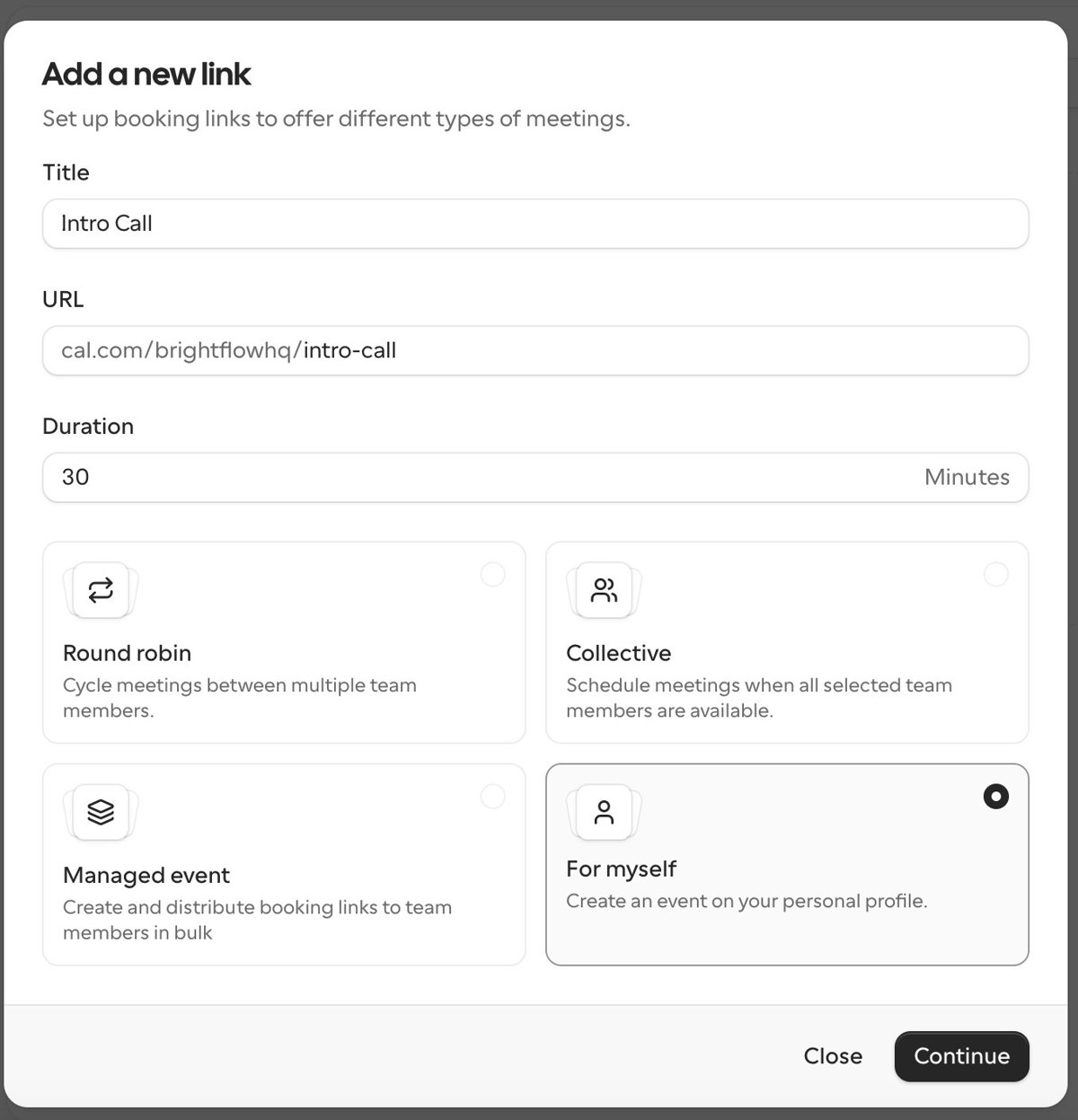
    The Cal.com new link dialog with title and duration
    Creating the event type: title, URL slug and duration. Screenshot: our own Cal.com account

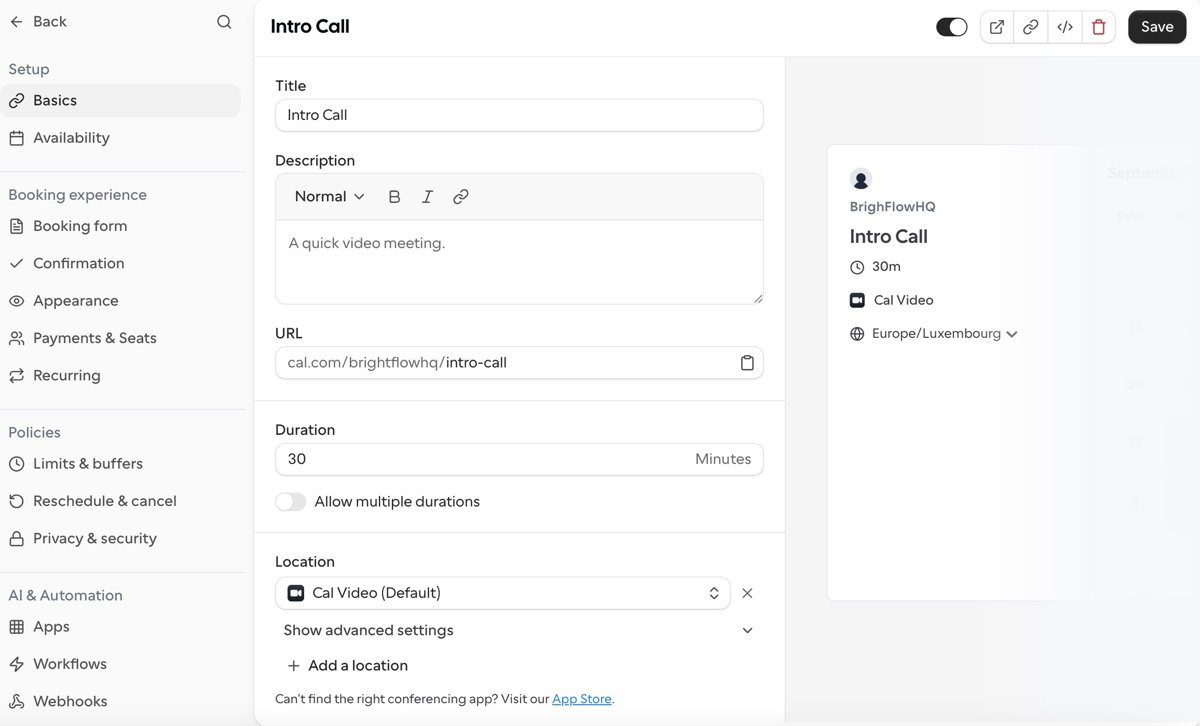
    An event type is a bookable meeting template: name it (Intro call, 30 minutes), set the duration, and choose the location such as a video call link generated automatically.

    The Cal.com event type editor showing basics settings
    The event editor: description, URL and location settings. Screenshot: our own account

    Step 4: Set your availability

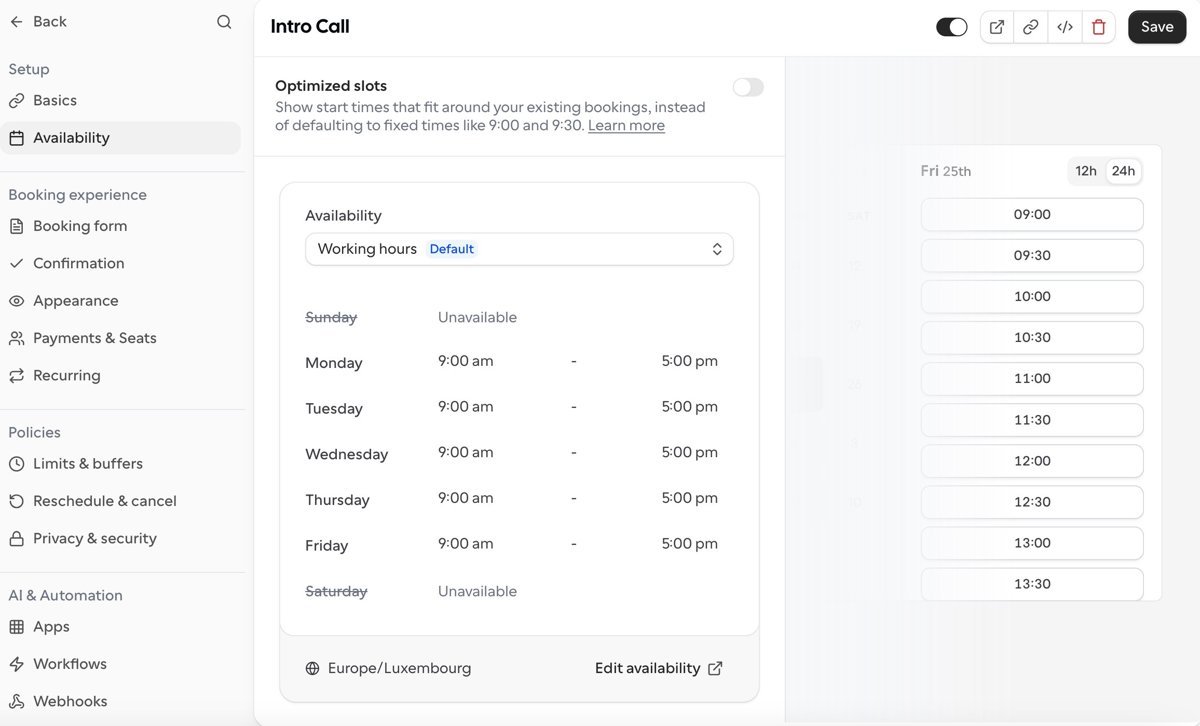
    Cal.com availability settings showing weekday working hours
    Availability: working hours, weekend off, timezone. Screenshot: our own account

    Define your bookable hours in the Availability tab, for example weekdays 10:00 to 16:00. Add buffers before or after meetings and a minimum notice period so nobody books you for five minutes from now.

    Step 5: Test-book yourself

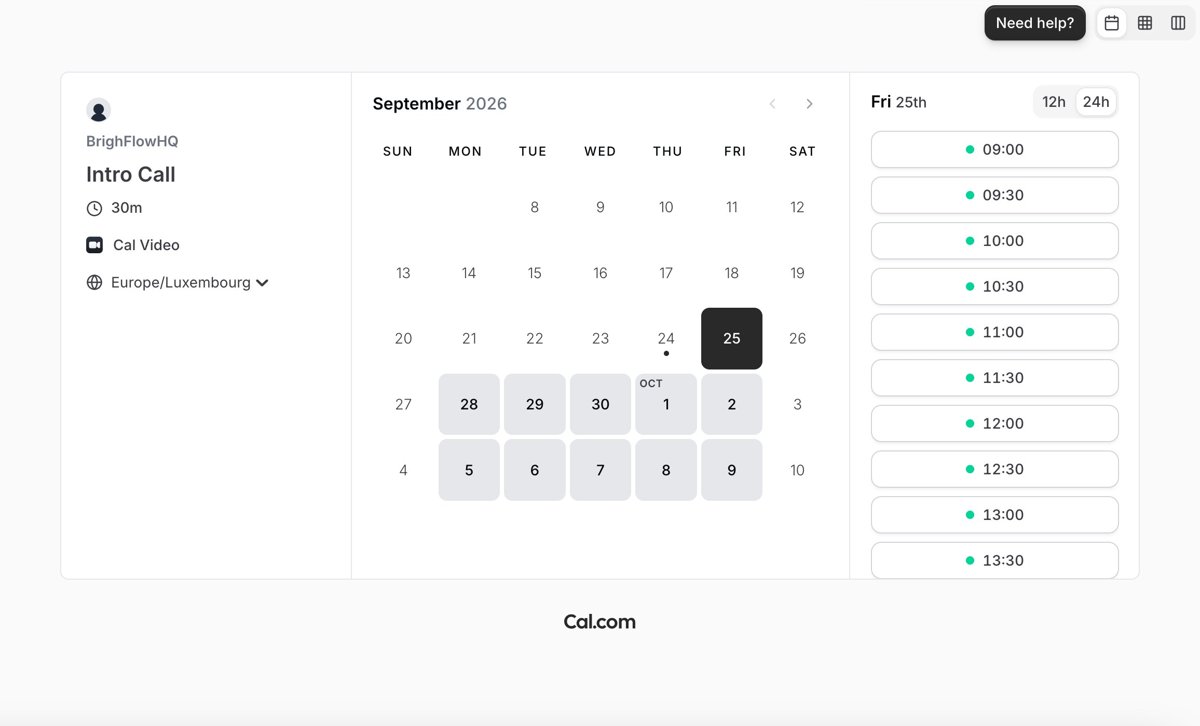
    The public Cal.com booking page with calendar and time slots
    What visitors see: the finished public booking page. Screenshot: our own account

    Open your booking link in a private window, book a slot, and confirm it lands on your calendar with the video link attached. This two-minute test catches timezone and calendar-destination mistakes before a client does.

    Step 6: Share the link

    Put your booking link in your email signature, website contact page and social profiles. Replace every back-and-forth scheduling email with it, that is the entire return on setup.

    The Two Settings People Regret Skipping

    Cal.com limits and buffers settings with minimum notice
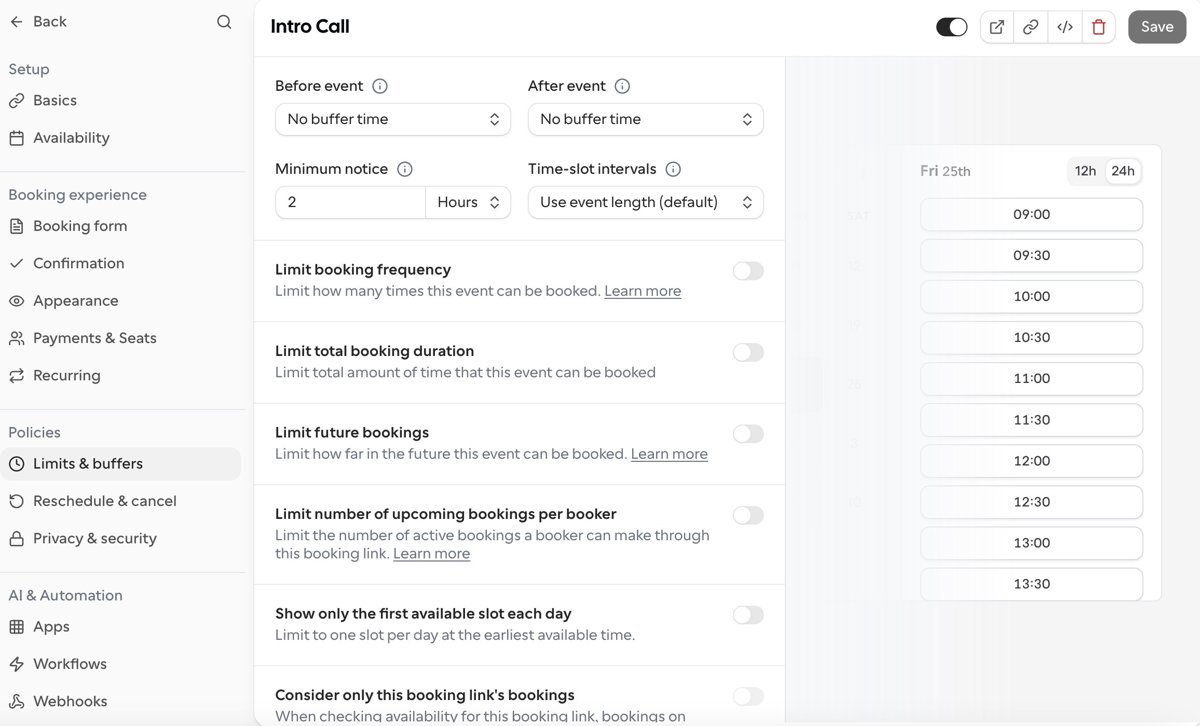
    Buffers and minimum notice live in the event’s Limits and buffers tab. Screenshot: our own account

    Buffers: ten minutes before and after every meeting is the difference between a calendar and a conveyor belt. Minimum notice: four hours or more stops the 8:55 booking for 9:00. Both live in the event type’s limits tab and take thirty seconds to set.

    Where to Go Next

    Two natural next steps have their own guides: embedding Cal.com on your website and automatic reminders that cut no-shows.

    Once the basic link works: multiple event types for different meeting lengths, routing forms if different people should reach different calendars, and workflows for reminder emails. Cal.com pairs naturally with a meeting notetaker, our AI meeting assistants guide covers that half, and the wider lean setup lives in the five-tool stack.

    FAQ

    Do I need a paid Cal.com plan to start?

    No. The free individual plan covers unlimited event types, calendar connections, availability rules and video call integration. Paid tiers matter for teams and advanced routing, not for getting bookable.

    Which calendar should new bookings be written to?

    Your primary working calendar, the one you actually check. You can read busy times from several calendars at once, but pick one clear destination so bookings never hide in a calendar you ignore.

    How do I avoid double bookings?

    Connect every calendar you actively use so Cal.com sees all your busy time, add buffers between meetings, and set a minimum booking notice. Those three settings prevent nearly all scheduling accidents.

  • Cal.com Review: The Free Plan Without a Catch (Tested Take)

    Cal.com Review: The Free Plan Without a Catch (Tested Take)

    Cal.com is the scheduling tool we recommend most often, and this review is the long-form why: what the free plan genuinely includes, where it beats Calendly and where it does not, and who should skip it. We use scheduling links daily and have covered this category across our tools comparison and the alternatives guide; this is the deep dive on our top pick.

    Disclosure: some links below are affiliate links. If you purchase through them we may earn a commission at no extra cost to you. This doesn’t affect our rankings.

    Quick answer: Cal.com earns our recommendation on one structural fact: the free individual plan has no meaningful limits (unlimited event types included), backed by an open-source engine. Setup costs a few more minutes than Calendly; the booking experience ends up equivalent. New users get 20 percent off paid tiers for a year through our link.

    What Cal.com Is

    A scheduling platform in the Calendly mold: you connect calendars, define event types with availability rules and buffers, and share booking links that let people grab a slot without email ping-pong. The difference is structural rather than cosmetic: Cal.com’s engine is open source, self-hostable, and API-first, which shapes everything from pricing to who adopts it.

    The Free Plan, Honestly Audited

    The individual free tier includes unlimited event types (Calendly free allows one), multiple calendar connections, customizable booking pages, buffers and limits, and the integrations that matter for solo use, including video call links. In months of category coverage we have not found the catch; the business model monetizes teams and the platform, not individuals. For a solo professional the honest summary is: this is the whole product, free.

    Where It Beats Calendly

    Price at every tier: free does more, paid costs less per seat. Openness: self-hosting and full data control are real options, not marketing. No pricing-page ambushes: the open core keeps the incentives honest. Extensibility: routing forms, workflows and an API that products actually build on.

    Where Calendly Still Wins

    Onboarding smoothness: Calendly remains the gentler first hour. Ecosystem maturity: some niche integrations arrive on Calendly first. Enterprise admin polish: large teams with heavy routing needs may prefer the incumbent’s tooling. None of these change the individual calculus; all can matter at organization scale, which we covered in the comparison.

    Setup: The Honest Fifteen Minutes

    We wrote the full walkthrough separately: zero to first booking in 15 minutes.

    Connect calendar, create first event type, set availability, test-book yourself, install the link in your email signature. The extra friction versus Calendly is real but front-loaded and small; nothing about daily use is harder. The 20-percent-off-for-a-year through Cal.com applies if you later want paid features; the free plan needs no discount.

    Verdict

    For individuals and small operations, Cal.com is the rare recommendation without an asterisk: the best free plan in the category, honest structural advantages, and trade-offs that are front-loaded minutes rather than ongoing costs. Teams deep in Calendly can stay without regret; everyone starting fresh should start here. It also pairs naturally with the rest of a lean stack, see our five-tool system and the meeting assistants guide.

    FAQ

    Is Cal.com really free for individuals?

    Yes. The individual plan includes unlimited event types, calendar connections and the core booking features at no cost. Paid tiers exist for teams, organizations and the enterprise platform; solo users can run indefinitely on free.

    Is Cal.com hard to set up compared to Calendly?

    Slightly. Expect an extra few minutes on setup and marginally less hand-holding. Once configured, the day-to-day booking experience is equivalent for you and indistinguishable for the people booking you.

    Can I move from Calendly to Cal.com without losing bookings?

    Existing scheduled meetings stay on your calendar regardless, since they live there, not in the tool. You recreate your event types in Cal.com, swap the link in your signatures and pages, and retire the old link at your pace.

    Is self-hosting Cal.com worth it?

    For individuals, no; the hosted free plan gives you the open-source project’s benefits without operations work. Self-hosting earns its keep for privacy-sensitive teams, data-residency requirements, or products embedding scheduling.

  • Best Calendly Alternatives: Free, Open Source and One-Time-Price Options

    Best Calendly Alternatives: Free, Open Source and One-Time-Price Options

    Calendly invented the category and still sets the polish bar, but its pricing model has a way of growing with you: one event type on the free plan, then per-seat fees that sting once a team adopts it. The alternatives have matured enough that most people paying for Calendly today could pay less, or nothing, without their booking experience getting worse. Here is the honest map.

    Disclosure: some links below are affiliate links. If you purchase through them we may earn a commission at no extra cost to you. This doesn’t affect our rankings.

    Quick answer: For most individuals, Cal.com is the strongest Calendly alternative: unlimited event types on a genuinely free plan, open source underneath, and 20 percent off paid tiers for a year through our link. Google users should try the built-in appointment schedules first. Budget one-time buyers: TidyCal.

    Quick Comparison

    Tool Free plan Paid from Standout Best for
    Cal.com Unlimited event types Team tiers Open source, API-first Most switchers
    Google appointment schedules Built into Calendar Included in Workspace Zero new accounts Google-first users
    TidyCal Limited One-time lifetime price No subscription at all Budget solo users
    SavvyCal Trial Monthly Overlay your calendar on theirs Scheduling-heavy pros
    Zoho Bookings Basic Low monthly Deep Zoho suite integration Zoho shops

    Cal.com: The Open-Source Heir Apparent

    Cal.com does the core Calendly job, booking pages, calendar sync, buffers, round-robin, with two structural advantages. First, the free individual plan includes unlimited event types, which is exactly the limit that pushes Calendly users to pay. Second, it is open source: self-hostable for teams with data requirements, embeddable for products, and immune to the pricing-page surprises that closed tools spring on loyal users.

    The honest trade-offs: onboarding is a notch less hand-held (our setup guide closes that gap), than Calendly’s, and some niche integrations arrive later. In day-to-day booking, your clients will not notice a difference. Signing up through our link gives new users 20 percent off paid plans for a year; the free plan needs no discount because it is simply free.

    Who should skip it: teams deeply wired into Calendly’s admin tooling and routing rules, where migration cost outweighs subscription savings.

    Google Calendar Appointment Schedules: Try Free-and-Already-There First

    If your scheduling needs are office hours, tutoring slots or straightforward client calls, the booking page built into Google Calendar may end the search before it starts. No new account, no new tab, bookings land directly on the calendar you already check. It is genuinely basic: minimal customization, no payments, no routing. But basic-and-adopted beats powerful-and-abandoned, and the price is zero. We covered it alongside the paid options in our scheduling tools comparison.

    TidyCal: The Subscription Objector

    TidyCal’s pitch is a one-time payment for lifetime access, aimed squarely at people tired of adding monthly software fees. It covers the essentials, booking pages, integrations, payments, with less polish and a smaller ecosystem than the big two. For a solo operator doing a handful of bookings a week, that trade is often rational. Do the math against Calendly’s annual cost and it usually pays for itself within the year.

    SavvyCal: For People Who Schedule All Day

    SavvyCal’s signature feature lets recipients overlay their own calendar on top of yours when picking a slot, which meaningfully reduces the back-and-forth for scheduling-heavy roles: recruiters, salespeople, consultants. It is a paid product priced like Calendly, so it is not a savings play; it is a workflow upgrade for people whose day is meetings.

    Zoho Bookings: The Suite Play

    If your business already runs Zoho CRM, mail or invoicing, Zoho Bookings slots in natively and costs less than Calendly’s equivalent tiers. Outside the Zoho ecosystem its case weakens; inside it, keeping scheduling data next to your CRM is the point.

    How to Choose in 60 Seconds

    Individual, want the most for free: Cal.com (our review). Everything-Google household with simple needs: appointment schedules. Allergic to subscriptions: TidyCal. Your calendar IS your job: SavvyCal. Zoho shop: Zoho Bookings. Scheduling links pair naturally with a meeting stack, our AI meeting assistants guide covers the other half, and solo operators comparing whole toolkits should see software for solopreneurs.

    FAQ

    What is the best free Calendly alternative?

    Cal.com’s free individual plan is the most complete: unlimited event types where Calendly’s free tier allows one, plus workflows and integrations that Calendly reserves for paid plans. Already-on-Google households should also try Google Calendar’s built-in appointment schedules before paying anyone.

    Is Cal.com really free? What’s the catch?

    The individual plan is genuinely free with unlimited event types. Cal.com makes money on team plans, the hosted enterprise product and its API platform. The trade-off versus Calendly is polish, not price: setup is slightly more hands-on.

    Should I self-host my scheduling tool?

    Only if you have a real reason: data residency requirements, embedding scheduling in your own product, or eliminating per-seat fees at scale. For individuals, Cal.com’s hosted free plan gives you the open-source project’s benefits without running a server.

    When is staying on Calendly the right call?

    If your team already lives in it, your clients know the links, and the per-seat cost is not a pain point, switching buys you little. Calendly remains the most polished option; the alternatives win on price, openness or specific features, not on smoothness.

  • Best Scheduling Tools: Calendly vs Cal.com vs Google’s Free Option

    Best Scheduling Tools: Calendly vs Cal.com vs Google’s Free Option

    The scheduling link is one of the few software categories that delivers exactly what it promises: the end of “does Tuesday work? no? Thursday?” email chains. The market has a clear default, a serious open-source challenger and a free built-in option most people forget they own. Picking between them takes five minutes if someone is honest about the differences, so here is that.

    Disclosure: some links below are affiliate links. If you purchase through them we may earn a commission at no extra cost to you. This doesn’t affect our rankings.

    Quick answer: Calendly free is the frictionless default for one meeting type. Cal.com wins for open-source control and generous free features. Already on Google Workspace? Its built-in appointment schedules may be all you need. AI schedulers solve a different problem than booking links.

    Calendly: The Default for a Reason

    Calendly’s core loop is still the smoothest: connect your calendar, set availability, share a link, done in ten minutes. The free tier gives one active event type with unlimited bookings, which quietly covers freelancers doing intro calls and anyone scheduling one kind of meeting. Paid tiers unlock multiple event types, reminders workflows, payments and team routing. The knock: per-seat pricing adds up for teams, and the polish premium is real but not always necessary.

    Who should skip it: teams allergic to per-seat costs and anyone with data-residency requirements, keep reading.

    Cal.com: The Open-Source Challenger

    Cal.com matches the core booking-link experience with a notably generous free individual tier and an open-source engine you can self-host. Signing up through our link gives new users 20 percent off for a year, same price as direct or better. That openness is the point: no per-seat toll at scale, your booking data on your infrastructure if you want it, and an API-first design that products embed. The trade is a slightly less hand-held setup and a younger polish level than the incumbent. For developers and privacy-sensitive teams it is the honest recommendation; for a coach who wants a link today, Calendly’s smoothness still wins.

    Google Calendar Appointment Schedules: The Forgotten Freebie

    If your world already runs on Google Calendar, appointment schedules provide a booking page with no new account, no new tab and no cost. It is genuinely basic: limited customization, no payments, minimal routing. But “basic and already there” beats “powerful and unadopted”, and for office hours, tutoring slots or internal bookings it is frequently the right answer. Test it before paying anyone.

    AI Schedulers: Different Tool, Different Problem

    Motion, Reclaim and friends rearrange your own tasks around your meetings automatically. They are subscription products solving calendar overload, not external booking, and they pair naturally with the meeting stack we cover in AI meeting assistants. Our honest read: most solo users get 80 percent of the benefit from a booking link plus deliberate time-blocking, at zero cost. The AI tier earns its fee for genuinely overloaded calendars with many stakeholders.

    Choosing in 30 Seconds

    One meeting type, want it today: Calendly free. Multiple types or a team, cost-sensitive or privacy-minded: Cal.com (our review). Already deep in Google Workspace: try the built-in schedules first. Drowning in internal meetings rather than external bookings: that is an AI-scheduler problem, or a saying-no problem. Want the full field beyond these four? Our Calendly alternatives guide adds TidyCal, SavvyCal and Zoho Bookings. For the wider stack these plug into, see software for solopreneurs and our workspace comparison.

    FAQ

    Is Calendly’s free plan enough?

    For one meeting type with unlimited bookings, yes, and that covers a surprising share of users. The paywall matters when you need multiple event types, round-robin team routing, or payment collection at booking.

    Why would anyone self-host a scheduling tool?

    Control and cost at scale. Cal.com’s open-source core means no per-seat fees, full data ownership and deep customization. For an individual it is overkill; for a privacy-sensitive team or product embedding scheduling, it is the serious option.

    Do AI scheduling assistants replace booking links?

    Different jobs. Booking links let outsiders pick from your open slots; AI schedulers rearrange your own tasks and meetings inside the calendar. Most people who think they need the AI actually need the link plus honest time-blocking.

  • The Minimalist Productivity Stack: Five Free Tools, Nothing Else

    The Minimalist Productivity Stack: Five Free Tools, Nothing Else

    Productivity content has a dirty secret: the advice churn is the product. New app, new method, new migration, repeat. Meanwhile the boring truth is that a complete, excellent system costs nothing and fits in five tools you already half-know. Here is that system, and the specific triggers that justify ever paying.

    Disclosure: some links below are affiliate links. If you purchase through them we may earn a commission at no extra cost to you. This doesn’t affect our rankings.

    Quick answer: Five free tools cover a complete solo system: Notion (notes and projects), Todoist (tasks), Google Calendar (time), Pomofocus (focus sessions) and Google Drive (files). The real advice: stop switching tools every quarter.

    Notes and Projects: Notion Free

    The free personal tier covers unlimited pages, databases and enough structure for a life admin hub plus project docs. Its genuine weakness is speed on mobile quick-capture, which the task app covers. If Notion’s flexibility reads as homework to you, a simpler notes app is a legitimate swap, our free alternatives guide ranks them, and the paid-tier breakdown shows exactly when free stops being enough (short version: when you add teammates).

    Tasks: Todoist Free

    Fast capture from any device, natural-language dates and just enough projects and filters. The free tier’s limits (active project count, no reminders by location) sit past where most personal use ever goes. The one rule that makes any task app work: one trusted list, emptied of stale items weekly, not three half-lists across apps.

    Time: Google Calendar

    Free, universal, and quietly excellent since appointment scheduling arrived on personal accounts. If you need outsiders to book you, add a scheduling link, our Calendly alternatives guide has free options. The productivity move is not the app, it is time-blocking: putting your two or three deep-work blocks on the calendar as real appointments before the week fills. Tasks tell you what; only the calendar tells you when.

    Focus: Pomofocus (or Any Timer)

    A free web-based Pomodoro timer with task labels and daily stats. The mechanism matters more than the brand: externalizing the start-stop decision breaks the doomscroll-before-starting loop. If 25-minute intervals feel arbitrary, run 50/10. The timer is a commitment device, not a philosophy.

    Files: Google Drive

    Fifteen free gigabytes, best-in-class search and sharing that everyone you collaborate with already understands. The organizational trick worth stealing: stop building deep folder trees and lean on search plus a single _Active folder for current work. You will never remember the taxonomy anyway.

    When Paying Becomes Rational

    Each tool has a genuine upgrade trigger: Notion when a team joins, Todoist at reminder-dependence, Drive at the storage wall, and calendars rarely ever. Solo operators comparing broader stacks should see our solopreneur software guide. Until a trigger fires, the free stack plus ruthless consistency beats the paid stack plus quarterly migrations, every time.

    FAQ

    Do I actually need a paid productivity app?

    Most individuals never hit the limits of good free tiers. Pay when a specific wall appears: team sharing, automation, or storage. Paying to feel more organized without a concrete blocked workflow is the most common productivity-spend mistake.

    Isn’t one all-in-one app simpler than five tools?

    Sometimes, and we compare those in our workspace guides. But all-in-ones grow complex fast, and their weakest module usually pushes you back to a specialist anyway. Five excellent free single-purpose tools stay simple longer than one sprawling one.

    What is the biggest productivity killer to avoid?

    Tool-hopping. Every migration costs setup days and abandons habits that were working. Pick a reasonable stack, run it for a quarter without switching, and let boredom be a feature, boring tools are tools you have mastered.

  • Best AI Tools for Job Seekers: What Helps and What’s Snake Oil

    Best AI Tools for Job Seekers: What Helps and What’s Snake Oil

    Job searching is miserable in a specific way: high stakes, repetitive tasks and constant rejection with no feedback. AI tools genuinely help with the repetitive part, which frees energy for the parts that actually win offers. This guide sorts what works from the growing pile of snake oil aimed at desperate applicants.

    Disclosure: some links below are affiliate links. If you purchase through them we may earn a commission at no extra cost to you. This doesn’t affect our rankings.

    Quick answer: A general AI assistant (ChatGPT or Claude, free tiers) covers the highest-value work: tailoring your resume per posting, drafting cover letters from your real experience, and mock interviews. Add a job tracker if volume gets messy. Skip auto-apply services.

    Resume Tailoring: The Highest-Value Use

    The single best AI job-search workflow costs nothing: paste the job description and your current resume into a general assistant and ask it to map your actual experience to the posting’s language, flag gaps honestly and tighten bullets into accomplishment statements. The critical rule is that the facts stay yours. AI reworded truth passes every screen; AI-invented experience is a firing offense waiting to happen. Which assistant matters less than people think, our three-way comparison covers the differences.

    Cover Letters Without the Agony

    Nobody enjoys writing cover letters and it shows. The AI-assisted version takes ten minutes: give the assistant the posting, two or three genuine reasons you fit, and one concrete story, then edit its draft until it sounds like you on a good day. The editing step is not optional. Hiring managers read hundreds of unedited AI letters now; the tell is perfect grammar wrapped around zero specifics.

    Interview Prep: The Underused Winner

    This is the use case people skip and should not. Ask the assistant to interview you for the specific role, one question at a time, then critique your answers for structure and specificity. Voice-mode makes it uncomfortably realistic. Practicing the story you will tell about a project, out loud, against pushback, is the closest thing to a free interview coach that has ever existed.

    Research and Tracking

    Before interviews, AI assistants compress hours of company research into a briefing: recent news, competitors, likely challenges for the team you would join. For managing the pipeline itself, a dedicated tracker with a free tier (Teal is the known name) beats the spreadsheet once you pass a dozen live applications. Our free AI tools roundup covers adjacent picks, and heavy writers should see the writing tools guide.

    The Snake Oil Shelf

    Auto-apply bots: they spray your resume at volume, response rates collapse, and you lose control of what goes out under your name. Paid “AI resume scores”: free ATS-format checks exist; the paid scores mostly upsell rewrites. Guaranteed-interview services: nobody can guarantee that, next.

    FAQ

    Will recruiters or ATS systems reject AI-written resumes?

    Systems screen for relevance and keywords, not authorship. The risk is not detection, it is blandness: a resume the AI wrote from nothing reads generic. Use AI to tailor your real accomplishments to each posting, not to invent voice-free filler.

    Are auto-apply services worth it?

    We advise against them. Mass-applying tanks response rates, risks applications you never saw going out with errors, and some platforms flag the behavior. Ten tailored applications beat two hundred sprayed ones.

    Do I need to pay for AI tools to job hunt?

    Mostly no. Free tiers of the major assistants handle tailoring, prep and research well. Pay only when a specific bottleneck justifies it, like heavy interview practice or managing a very high volume of applications.

  • Best Free Notion Alternatives (2026): When the All-in-One Isn’t Your One

    Best Free Notion Alternatives (2026): When the All-in-One Isn’t Your One

    Notion’s flexibility is exactly why some people bounce off it: when a tool can be anything, it starts as nothing, and the blank canvas is real work. If you tried Notion and felt more architecture student than productive human, these five free alternatives each pick one lane and run it well. We’ve matched each to the person it actually suits.

    Disclosure: some links below may become affiliate links. It never affects our picks. How we review.

    Quick answer: Trello is our top pick (best for simple visual projects), with Obsidian the smart budget buy. Full scores, trade-offs and who each pick is not for, below.

    Quick Comparison

    Tool Free plan ceiling Best for Weak spot
    Obsidian Fully free for personal use Notes & connected thinking No native tasks/databases
    Trello 10 boards/workspace Simple visual projects Not a docs tool
    Anytype Free, local-first Privacy-minded Notion feel Younger ecosystem
    Coda Small docs, unlimited viewers Doc-database power users Steeper learning curve than Notion
    AppFlowy Free, open source Self-hosters & tinkerers Setup effort
    The numbers at a glance

    BrightFlow Scorecards

    Our independent assessment, a weighted rubric (Performance 40%, Ease of use 20%, Features 20%, Value 20%). Scored out of 10.

    Obsidian
    Best for notes and thinking
    8.3
    BrightFlow Score
    💰 BEST VALUE
    Performance8.5
    Ease of use8.2
    Features8.0
    Value8.2
    Trello
    Best for simple visual projects
    8.4
    BrightFlow Score
    🏆 EDITOR’S PICK
    Performance9.4
    Ease of use7.4
    Features9.3
    Value6.6
    Anytype
    Best privacy-first Notion feel
    8.2
    BrightFlow Score
    Performance8.5
    Ease of use8.2
    Features7.8
    Value8.2
    Coda
    Best for doc-database power users
    8.3
    BrightFlow Score
    Performance8.5
    Ease of use8.2
    Features8.0
    Value8.2
    AppFlowy
    Best open-source option
    8.3
    BrightFlow Score
    Performance8.5
    Ease of use8.2
    Features7.9
    Value8.2
    How we score: the BrightFlow Score follows our published rubric, no brand pays for placement, scores or badges. Read how we review and our affiliate disclosure.

    Obsidian: Best for notes and thinking

    Obsidian stores everything as plain Markdown files on your machine, links notes like a personal wiki, and is completely free for personal use. If your Notion was really a thinking tool, research, ideas, journals, Obsidian does that job faster, offline, and with your files forever yours.

    Who it’s not for: anyone who needs project boards, databases or team features out of the box. That’s plugin territory, and plugins are a hobby.

    Trello: Best for simple visual projects

    If your Notion was really a kanban board wearing a fancy hat, Trello’s free plan does boards better: faster, friendlier, and impossible to over-engineer. Ten boards is plenty for personal projects and a small side hustle.

    Who it’s not for: documentation and notes. Cards are not pages, and pretending they are ends badly.

    Anytype: Best privacy-first Notion feel

    Anytype looks and behaves the most like Notion of anything here, pages, objects, relations, but stores data locally with encryption, works fully offline, and the core product is free. It’s the answer to “I love Notion but hate that my life lives on someone’s server.”

    Who it’s not for: heavy collaborators. Multiplayer exists but Notion’s sharing is still smoother.

    Coda: Best for doc-database power users

    Coda out-Notions Notion on formulas and interactive documents: buttons, automations and cross-table logic that make real internal tools. The free plan’s doc-size limit is genuinely workable for personal systems, and unlimited viewers means sharing is free.

    Who it’s not for: casual note-takers. Coda’s power assumes you’ll invest in learning it, more than Notion asks.

    AppFlowy: Best open-source option

    AppFlowy is the open-source Notion clone for people who want to own the whole stack, self-hostable, active development, and a familiar pages-plus-databases model. It has matured fast and the desktop experience is now genuinely pleasant.

    Who it’s not for: anyone who reads “self-host” and feels tired. Use Anytype instead.

    Or… stay with Notion, free

    Honest counterpoint: for solo use, Notion’s Free plan remains excellent, and if your hesitation is complexity rather than the tool itself, a simpler setup beats a new app. Our Notion vs ClickUp vs Asana comparison and solopreneur stack guide help you decide with less tab-hopping.

    FAQ

    What’s the closest free clone of Notion?

    Anytype for a polished local-first experience, AppFlowy if you want open source and control. Both use the familiar pages-and-databases model.

    Can Obsidian replace Notion completely?

    For notes and knowledge, often yes, many switchers never look back. For databases, tasks and team wikis, no; that requires plugins or a second tool.

    Are these free plans actually usable long-term?

    Yes, every pick here has a free tier designed for permanent personal use, not a trial in disguise. Limits mostly appear when teams or heavy storage enter the picture.