
Setting up Cal.com takes about fifteen minutes, and the payoff is permanent: every “does Tuesday work?” email chain replaced by one link. This guide walks the whole path from empty account to first real booking, including the two settings that prevent embarrassing scheduling accidents. If you are still choosing a tool, our full review and alternatives comparison cover the why; this page is the how.
Disclosure: some links below are affiliate links. If you purchase through them we may earn a commission at no extra cost to you. This doesn’t affect our rankings.
Quick answer: The fifteen-minute version: create your free Cal.com account (free plan, unlimited event types, and 20 percent off for a year if you ever go paid through our link), connect your calendar, create one event type, set availability with buffers, test-book yourself, then put the link in your email signature.
Step 1: Create your account
Sign up with your work email or Google account. The free individual plan includes unlimited event types, so no card and no trial clock.
Step 2: Connect your calendar
Link Google Calendar, Outlook or others under Settings, then Calendars. Cal.com reads busy times from every connected calendar and writes new bookings to the one you choose as destination.
Step 3: Create your first event type
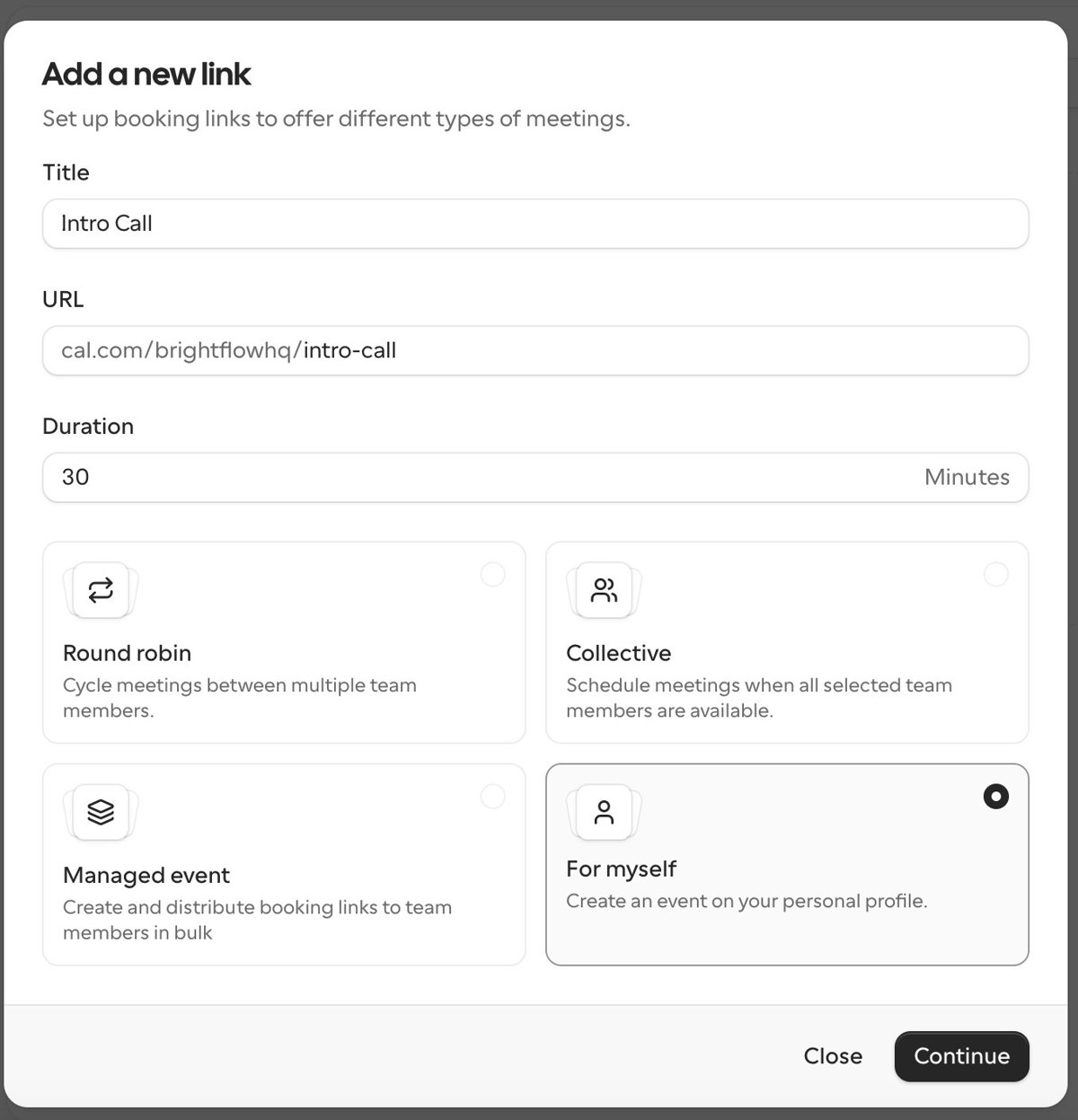
An event type is a bookable meeting template: name it (Intro call, 30 minutes), set the duration, and choose the location such as a video call link generated automatically.
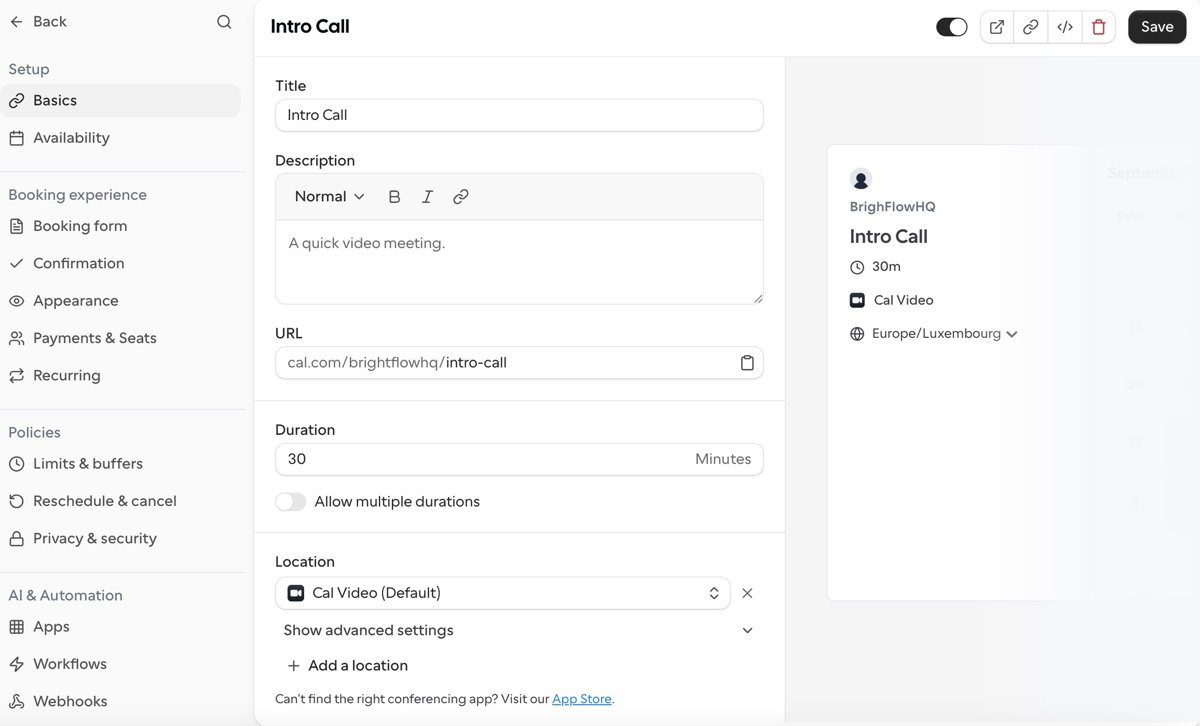
Step 4: Set your availability
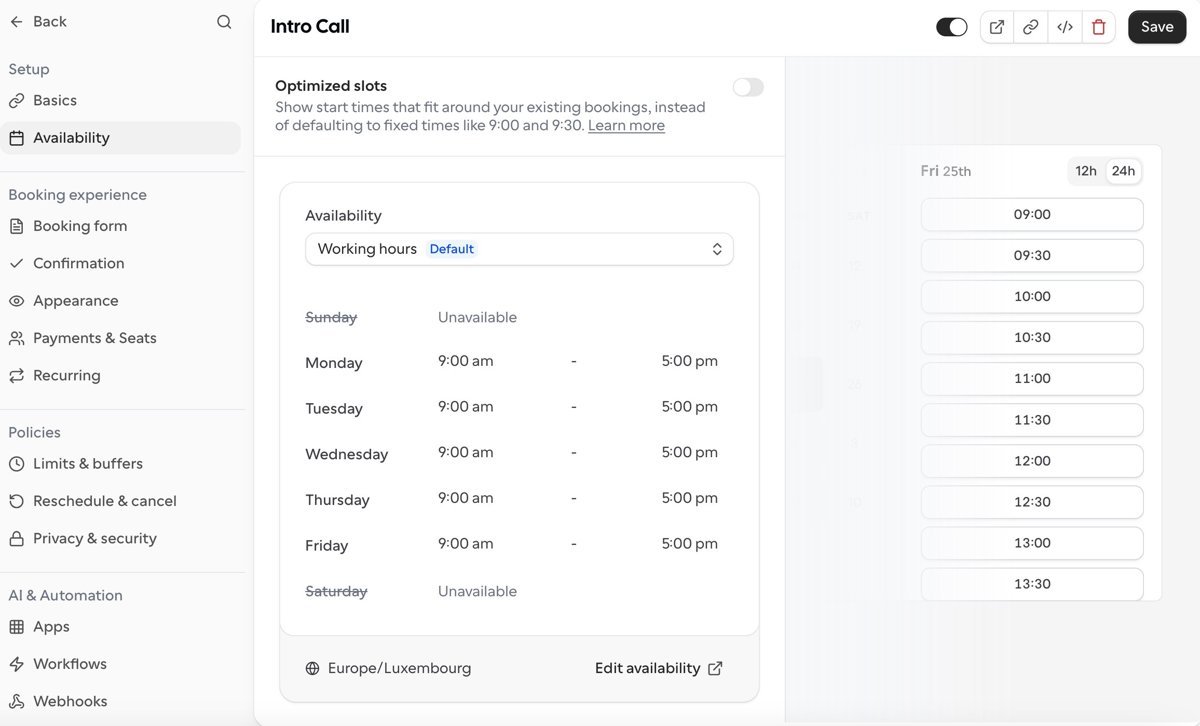
Define your bookable hours in the Availability tab, for example weekdays 10:00 to 16:00. Add buffers before or after meetings and a minimum notice period so nobody books you for five minutes from now.
Step 5: Test-book yourself
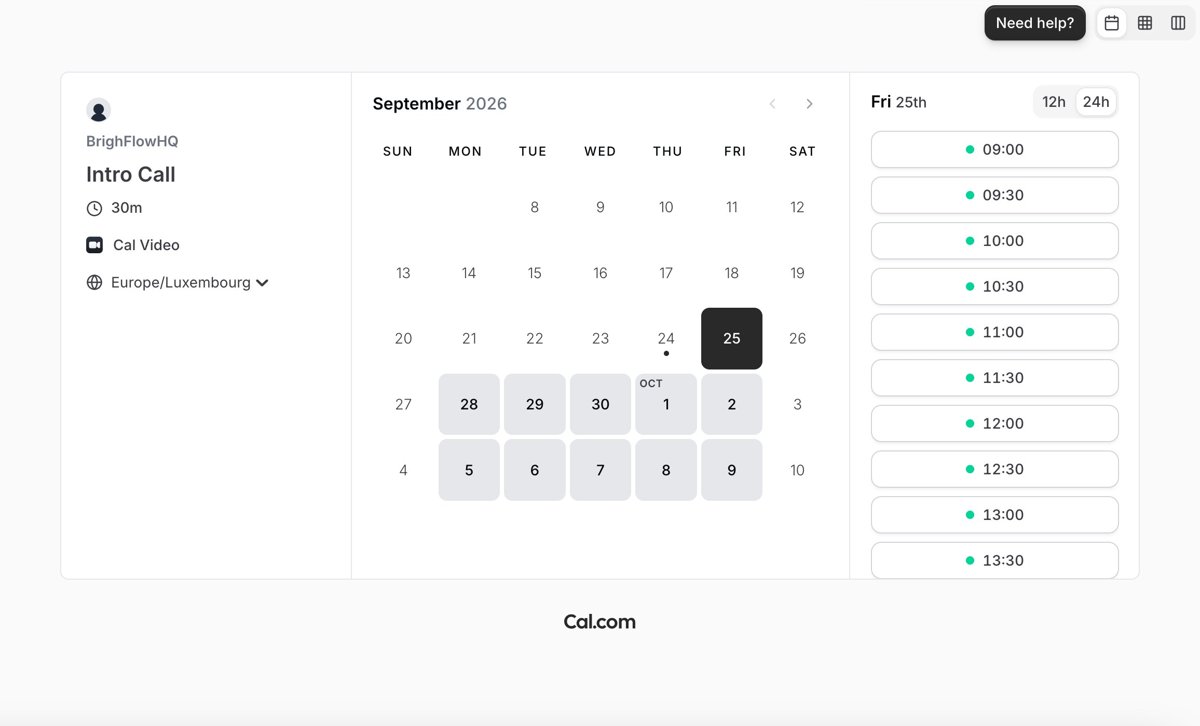
Open your booking link in a private window, book a slot, and confirm it lands on your calendar with the video link attached. This two-minute test catches timezone and calendar-destination mistakes before a client does.
Step 6: Share the link
Put your booking link in your email signature, website contact page and social profiles. Replace every back-and-forth scheduling email with it, that is the entire return on setup.
The Two Settings People Regret Skipping
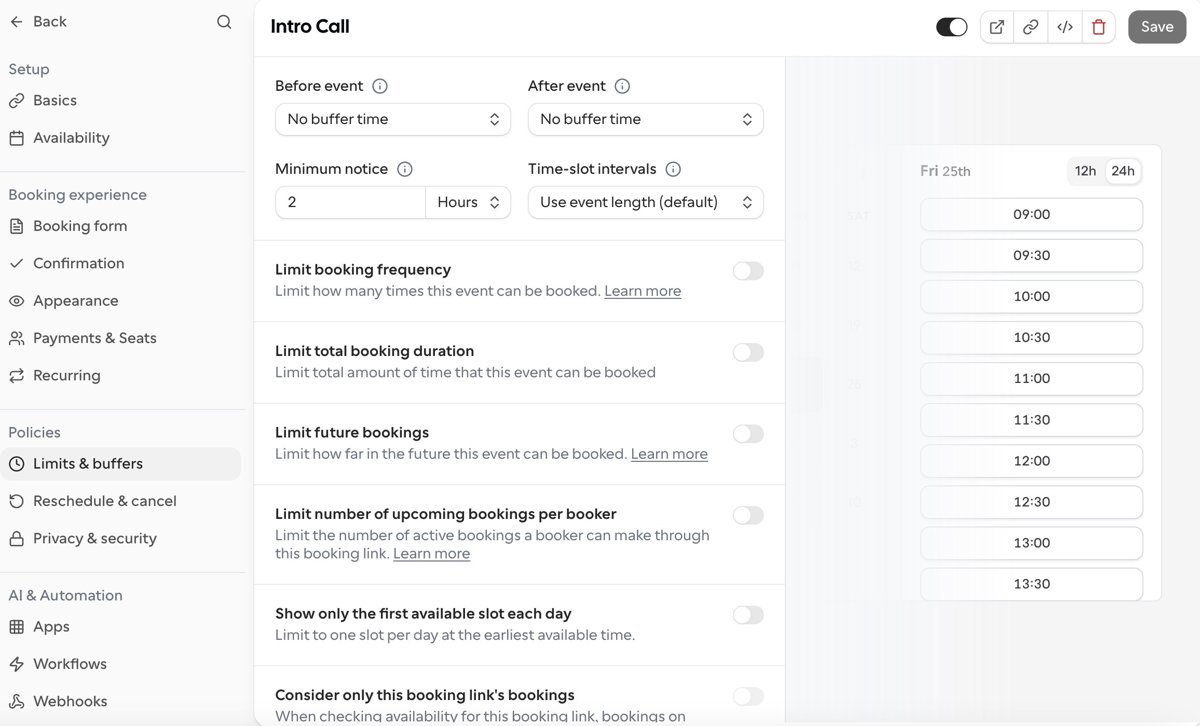
Buffers: ten minutes before and after every meeting is the difference between a calendar and a conveyor belt. Minimum notice: four hours or more stops the 8:55 booking for 9:00. Both live in the event type’s limits tab and take thirty seconds to set.
Where to Go Next
Two natural next steps have their own guides: embedding Cal.com on your website and automatic reminders that cut no-shows.
Once the basic link works: multiple event types for different meeting lengths, routing forms if different people should reach different calendars, and workflows for reminder emails. Cal.com pairs naturally with a meeting notetaker, our AI meeting assistants guide covers that half, and the wider lean setup lives in the five-tool stack.
FAQ
Do I need a paid Cal.com plan to start?
No. The free individual plan covers unlimited event types, calendar connections, availability rules and video call integration. Paid tiers matter for teams and advanced routing, not for getting bookable.
Which calendar should new bookings be written to?
Your primary working calendar, the one you actually check. You can read busy times from several calendars at once, but pick one clear destination so bookings never hide in a calendar you ignore.
How do I avoid double bookings?
Connect every calendar you actively use so Cal.com sees all your busy time, add buffers between meetings, and set a minimum booking notice. Those three settings prevent nearly all scheduling accidents.