Every no-show is a slot you could have given to someone else. Cal.com workflows send reminders and follow-ups automatically, and the template gallery means you do not start from a blank page. Here is how to set up the two reminders that matter most. If you have not set up your account yet, begin with our setup guide.
Disclosure: some links below are affiliate links. If you purchase through them we may earn a commission at no extra cost to you. This doesn’t affect our rankings.
Quick answer: Open Workflows, start from a template (one-day-before reminder and no-show follow-up are the two to start with), attach it to your event types, adjust timing and wording, then test with a real booking. Check your plan for SMS and phone features.
The Template Gallery
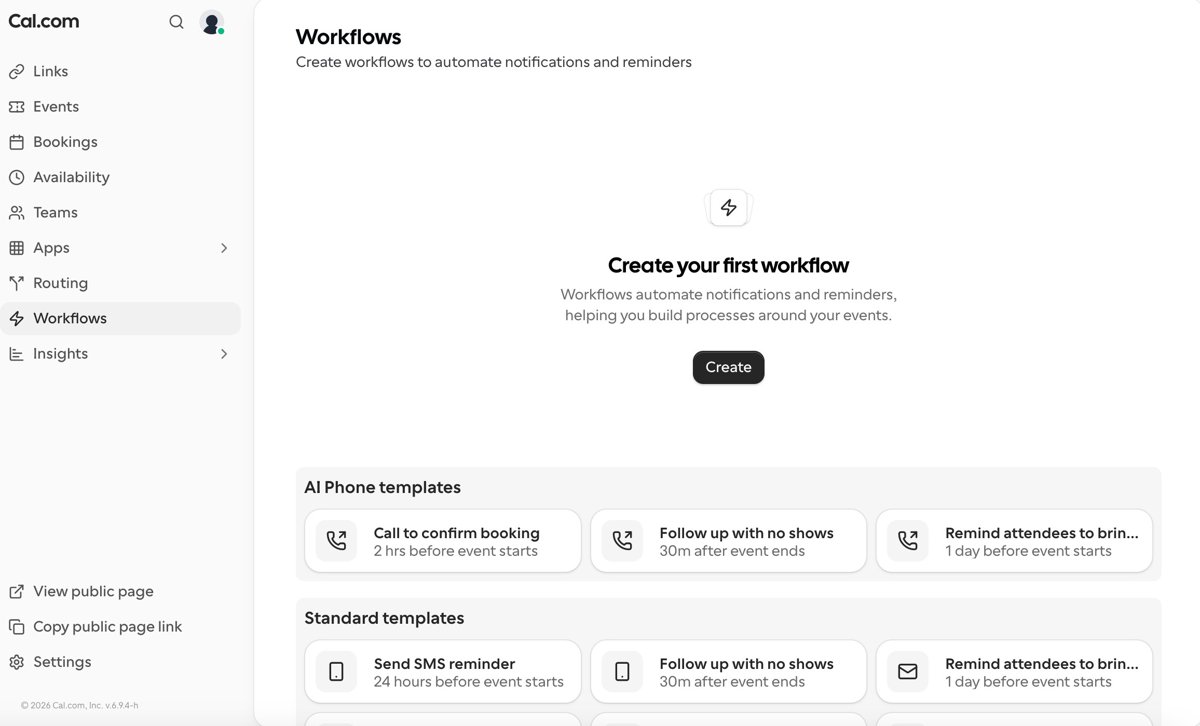
Cal.com opens Workflows with ready-made templates grouped by channel: reminders sent a day before the event, follow-ups sent after a no-show, and confirmation calls shortly before a booking. Starting from a template means a working reminder in minutes rather than designing one.
Step 1: Open Workflows
In Cal.com, open the Workflows section from the left menu. It starts with a template gallery rather than a blank page.
Step 2: Pick a reminder template
Choose a template such as reminding attendees one day before the event, or following up with no-shows after the event ends.
Step 3: Attach it to your event types
Select which event types the workflow applies to, for example only your paid consultations.
Step 4: Adjust the timing and message
Set when the reminder sends and edit the message so it sounds like you, including the meeting link or preparation notes.
Step 5: Activate and test
Save the workflow, then make a test booking to confirm the reminder arrives as expected.
The Two Reminders Worth Setting Up First
A day-before email reminder catches the forgotten meeting while there is still time to reschedule. A no-show follow-up turns a missed meeting into a rebooked one instead of a lost lead. Add more only once these two are working; over-messaging people you are about to meet reads as nervous rather than professional.
If SMS or phone reminders matter to your business, that is where plan tiers become relevant, see the full review, and note that our link gives new users 20 percent off paid plans for a year.
FAQ
Do booking reminders actually reduce no-shows?
Reminders are one of the most widely recommended no-show reductions for appointment-based work, because most missed meetings are forgotten rather than skipped. A reminder a day before plus one shortly before is a common pattern.
Are Cal.com workflows free?
Some workflow capabilities may depend on your plan, particularly SMS and AI phone features. Check Cal.com’s current pricing page for what your plan includes before building around a specific channel.
What should a reminder message include?
The meeting time with timezone, the video link or address, a one-line reason to show up prepared, and an easy reschedule option. Making rescheduling easy converts would-be no-shows into moved meetings.