A booking link in your email signature is good; a booking calendar right on your website is better, because visitors book in the moment instead of promising to reach out later. Cal.com generates the embed code for you in four different styles. Here is which style fits which site, and the five-minute path from event type to live calendar. New to Cal.com? Start with our setup guide.
Disclosure: some links below are affiliate links. If you purchase through them we may earn a commission at no extra cost to you. This doesn’t affect our rankings.
Quick answer: Open your event type, click the embed icon, pick a style, copy the generated snippet, and paste it into your site (a Custom HTML block in WordPress). Inline suits a dedicated booking page; the floating button suits sitewide availability.
The Four Embed Styles
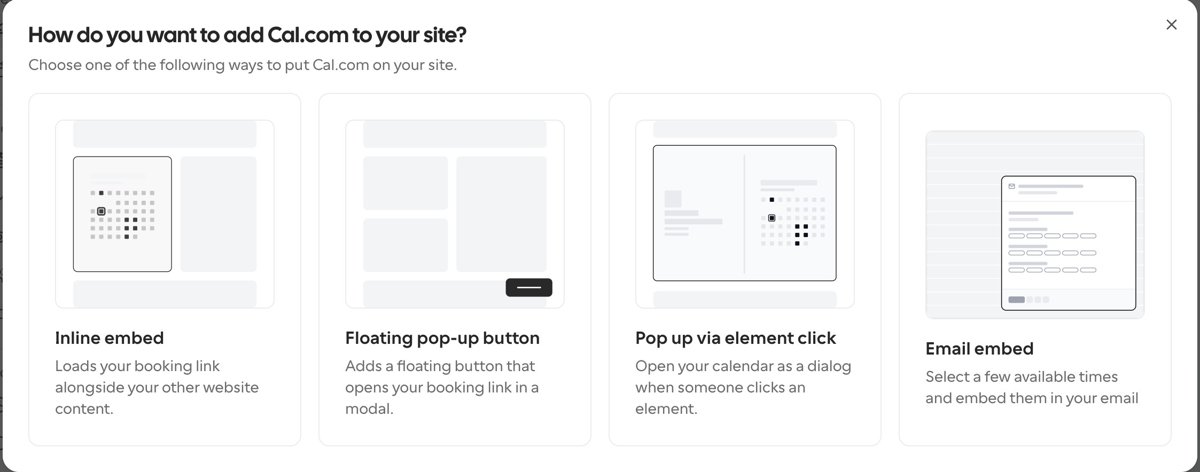
Inline embed places your full booking calendar inside the page content, the right choice for a Book a call or Contact page. Floating pop-up button adds a persistent button that opens the booking flow in a modal on every page, maximum availability with minimal layout work. Pop-up via element click turns any button or link you already have into a booking trigger, ideal inside your own copy. Email embed lets you drop a few available times directly into an email, which removes a round trip from outreach.
Step 1: Open your event type
In Cal.com, open the event type you want visitors to book, such as a 30-minute intro call.
Step 2: Choose the embed option
Click the embed icon in the event editor header. Cal.com offers four styles: inline, floating pop-up button, pop-up on element click, and email embed.
Step 3: Copy the generated snippet
Pick a style, adjust colors and layout if offered, and copy the code Cal.com generates.
Step 4: Paste it into your site
Add the snippet where the booking should appear. In WordPress that means a Custom HTML block; most site builders have an equivalent embed or code block.
Step 5: Test it live
Open the published page in a private window and book a test slot to confirm it reaches your calendar.
Our Recommendation
Most freelancers and consultants should use two: an inline embed on the contact page, plus the floating button if booking calls is central to the business. Everything here works on Cal.com’s free plan; the full review covers where paid tiers start to matter.
FAQ
Which Cal.com embed style should I use?
Inline for a dedicated booking or contact page, the floating button for sitewide availability, pop-up on click when you want a button inside your own copy, and email embed for proposing times in outreach.
Does embedding Cal.com slow down my website?
The embed loads Cal.com’s booking interface from its own servers. On a dedicated booking page this is a non-issue; for sitewide floating buttons, test your page speed before and after.
Can I embed Cal.com in WordPress without a plugin?
Yes. Paste the generated snippet into a Custom HTML block. No plugin is required for a basic embed.